

Anycolor Horoscopes
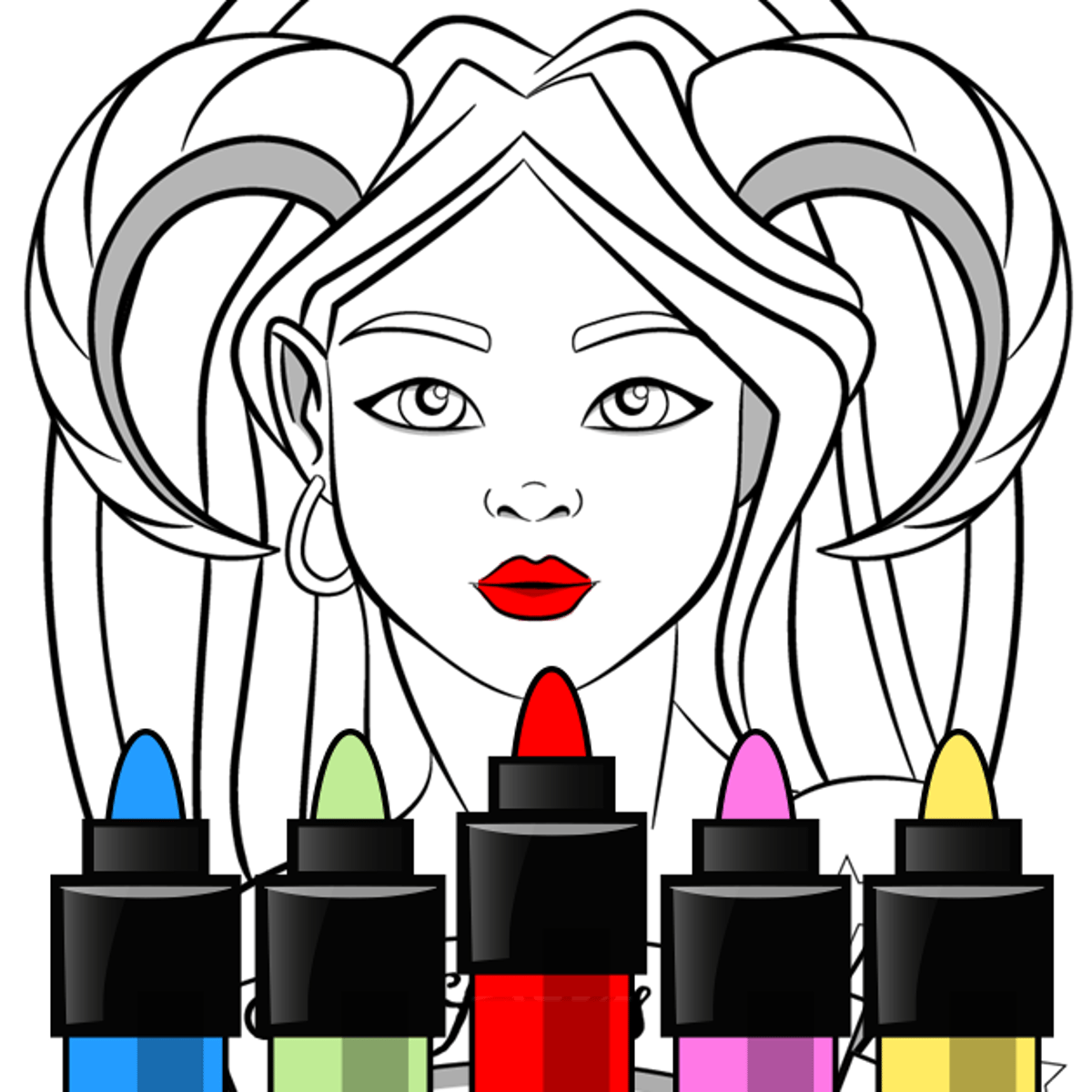
You know that feeling when you wish your daily horoscope came with a coloring book? Anycolor Horoscopes is exactly that: a quiet, soothing game where you fill in beautifully drawn zodiac signs, constellations, and celestial patterns with whatever colors strike your mood. No timer, no score, no wrong moves—just you, a palette, and a blank outline waiting to come alive. It’s the kind of game you open when you want to unwind for five minutes and end up spending an hour perfecting the shading on a Sagittarius archer’s bow.
What keeps me coming back is the sheer variety. The game doesn’t just throw a few star signs at you and call it a day. You’ll find intricate mandalas of the moon phases, whimsical depictions of each zodiac animal, and abstract astrological symbols that let you experiment with color combos you’d never try in real life. And because it’s all digital, there’s no mess, no running out of crayons, and no pressure to stay inside the lines—though the game does make it satisfying to do so.
The developer, Aniway, has a knack for these relaxing art games. They also made the original “Anycolor” and “Anycolor by Numbers,” so they know their audience. Anycolor Horoscopes feels like a natural evolution: take the simple tap-to-fill mechanic and give it a theme that’s both personal and universal. Whether you’re a die-hard astrology believer or just someone who likes pretty pictures, there’s something here that will hook you.
I’ve been playing it on and off for a few months now, and I keep coming back. Not because it’s challenging—it’s not—but because it’s one of the few games that actually lets me turn my brain off. No loot boxes, no daily quests, no pressure to log in. Just a quiet space to make something pretty. That’s rare.
How to Play
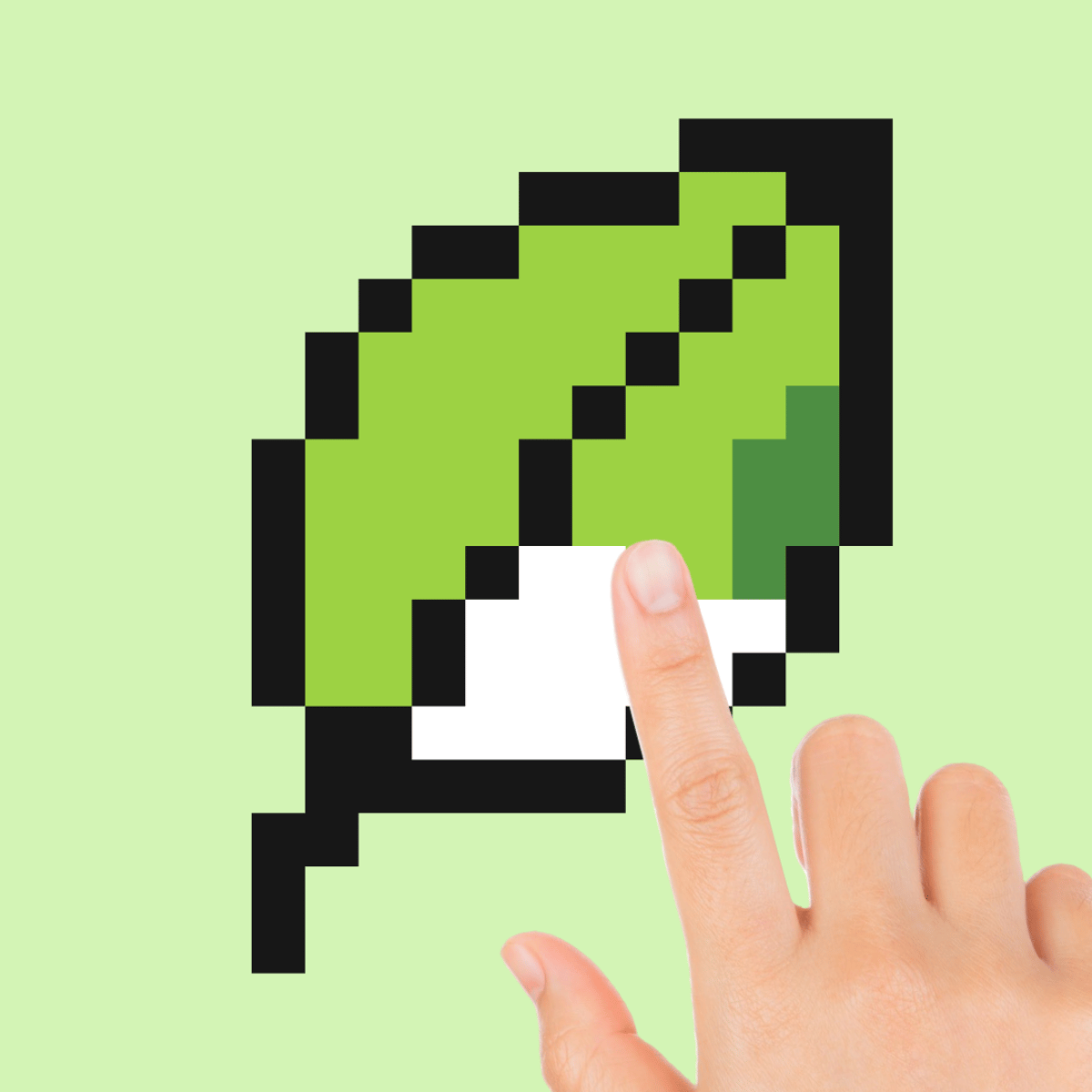
The core loop is dead simple: pick a picture, choose a color, and tap or click on any enclosed area to fill it. That’s it. But there’s a little more nuance once you start digging.
Objective
Your goal is to complete each illustration by coloring every section. There’s no time limit, no combo multiplier, no penalty for taking a break mid-picture. You can leave a drawing half-finished and come back days later—it saves your progress automatically. The only real “objective” is to create something you like looking at.
The game does give you a small reward for finishing: a star. Stars unlock new color palettes, which is the main progression system. But you don’t need to 100% a picture to get the star. You just need to fill enough sections that the game considers it “complete.” I’ve tested this: you can leave a few tiny spots unfilled and still get the star. The game is forgiving that way.
Controls
Desktop (mouse): Hover over any area of the image. A thin outline will highlight the section you’re about to fill. Left-click to apply the currently selected color. Scroll up or down to zoom in and out, which helps with those tiny detail spots. Right-click does nothing special, but you can use the scroll wheel to browse the color palette if you’re not using the on-screen buttons. One thing I wish they’d add is a keyboard shortcut for undo—maybe Ctrl+Z—but the on-screen button works fine.
Mobile (touch): Tap directly on the area you want to color. The game responds to both finger taps and stylus touches. Pinch to zoom in and out. The palette appears at the bottom of the screen; swipe left or right to see more colors. On smaller phone screens, the sections can be pretty tiny, so zooming in is almost mandatory for the detailed zodiac portraits. I’ve found that using a cheap capacitive stylus makes a huge difference on the intricate pieces—my thumb just isn’t precise enough for the spaces between a Scorpio’s claws.
Palette navigation: The color palette scrolls horizontally. You’ll start with a basic set of maybe twenty colors, but as you complete pictures, you unlock new palettes—neon tones, pastels, metallics, and even some gradient options. You can also tap the “undo” button (a little arrow) if you accidentally fill the wrong spot. There’s no redo, so be careful. The undo only goes back one step, which I’ll complain about more in the Common Mistakes section.
Picture selection: The main menu shows a grid of thumbnails. Each one is a different horoscope-themed illustration. They’re grouped loosely by difficulty: simpler ones (like a single zodiac symbol) have fewer sections, while complex ones (like a full astrological chart with planets and houses) can have hundreds of tiny cells. You can play them in any order. There’s no linear progression, which I appreciate. If you want to jump straight to a detailed Pisces fish with scales that take forever, go for it.
The thumbnails are small, but tapping one opens a larger preview. From there you can start coloring or go back. The preview is useful because it shows the outlines more clearly than the tiny grid view. Sometimes I’ll browse the thumbnails just to see what’s available before committing to a piece.
Features
Anycolor Horoscopes isn’t packed with modes or mini-games, but it does have a few thoughtful features that elevate it above a basic coloring app.
Unlockable Palettes
As you finish pictures, you earn “stars” (one per completed image). These stars unlock new color palettes. The base set is fine, but the real fun starts when you get the “Galaxy” palette—deep purples, cosmic blues, and shimmering silver. There’s also a “Zodiac” palette that matches the traditional colors associated with each sign (fiery reds for Aries, earthy greens for Taurus, etc.). If you’re a completionist, you’ll want to unlock them all.
But here’s the thing: you don’t have to grind. The first few palettes unlock after just one or two stars. The later ones, like “Neon” and “Metallic,” require maybe five or six stars each. That’s about an hour of coloring, depending on how fast you work. I unlocked the Galaxy palette on my second day of playing, and it completely changed how I approached the pictures. Suddenly, a simple Libra scales illustration became an excuse to use cosmic blues and silvers. The palettes are the main reason I kept playing after the first week.
There’s also a hidden palette called “Prism” that you get for completing all the pictures in a specific category. I won’t spoil which one, but it’s worth aiming for. It gives you rainbow gradients that shift as you apply them. Very trippy, very satisfying.
Zoom and Precision Mode
The game handles fine details well. When you zoom in, the section outlines become thicker and easier to see. There’s also a subtle snap-to-grid feel: if you tap near a boundary, the game fills the correct section even if your finger is slightly off. This is a lifesaver on mobile, where fat-finger syndrome is real.
On desktop, zooming is even smoother. You can scroll in until a single section fills the entire screen. That level of precision is overkill for most pictures, but for the really intricate ones—like the “Astrological Chart” with its dozens of tiny planetary symbols—it’s essential. I’ve spent ten minutes on a single section of that chart, just getting the color right.
One thing I noticed: the snap-to-grid isn’t perfect. On very small sections, especially those with curved edges, the game might misinterpret your tap and fill an adjacent area. It’s rare, but it happens. When it does, you’ll be glad the undo button exists.
No Ads During Play
This is a big one. The game shows ads between levels (usually a short video after you finish a picture), but while you’re actively coloring, there are no pop-ups, banners, or interruptions. You can get into a flow state without being yanked out by a commercial for some match-3 game.
The ads are optional in the sense that you can skip them after a few seconds. I’ve never felt pressured to watch them. And honestly, a 15-second ad after spending 20 minutes on a picture is a fair trade. The game is free, after all. I’ve seen worse—games that throw a full-screen ad every time you tap a button. This isn’t that.
Offline Play
Once the game is loaded, you can play without an internet connection. The pictures and palettes are all stored locally. This makes it perfect for flights, subway rides, or any place with spotty reception.
I tested this on a plane last month. I opened the game before takeoff, selected a picture, and colored for the entire two-hour flight without any issues. The only catch is that you can’t download new pictures or updates offline, but that’s obvious. If you’re planning a trip, just make sure you’ve downloaded the latest content beforehand.
Regular Updates
The game launched in February 2023 and has been updated consistently. New pictures are added every few months, often tied to astrological events (like a new moon or a Mercury retrograde). The latest update (October 2025) added a set of Halloween-themed zodiac illustrations—think spooky Scorpios and pumpkin-adorned Libras.
I’ve been playing since August 2024, and in that time, the picture count has gone from about 50 to over 80. The updates aren’t huge—usually 5-10 new pictures at a time—but they’re frequent enough that I never feel like I’ve run out of content. The developer also occasionally tweaks the palettes or adds new ones. The “Pastel” palette was added in a March 2025 update, and it’s become my go-to for the more delicate illustrations.
Tips and Strategies
You might think a coloring game doesn’t need strategy, but if you want your finished pieces to look polished and avoid frustration, a few tricks go a long way.
Start with the largest areas first
When you open a new picture, resist the urge to dive into the tiny details. Fill the big background sections first. This gives you a sense of the overall color scheme and prevents you from painting yourself into a corner where a small area is surrounded by colors that clash. Plus, it’s satisfying to see the image take shape quickly.
For example, in the “Sagittarius Archer” picture, the background is a large circular border. I filled that with a dark navy first, then moved to the archer’s cloak (a medium blue), then the skin tones, and finally the tiny details like the bowstring and arrows. By the time I got to the small sections, I already knew the color palette worked. If I’d started with the bowstring, I might have ended up with a mismatched mess.
Use the “preview” trick
Before committing to a color, hover your cursor (or tap and hold on mobile) over a section. The game will show a faint preview of what that color would look like in that spot. This is especially useful when you’re deciding between two similar shades. It’s not a full simulation—the preview is a bit washed out—but it’s enough to avoid regret.
I use this constantly when working with the Galaxy palette. The difference between “Cosmic Blue” and “Nebula Teal” is subtle, and the preview helps me see which one pops better against the surrounding colors. On mobile, the preview is triggered by a long press. It takes a second to activate, so be patient.
Keep a consistent light source
This sounds pretentious, but it makes a difference. If you’re coloring a picture of a zodiac figure, imagine where the light is coming from. Use lighter shades on the “lit” side and darker shades on the opposite side. The game doesn’t enforce this, but your finished piece will look more three-dimensional and professional.
Take the “Leo Lion” picture. The mane is a series of overlapping sections. I imagined the light coming from the top-left, so I used a golden yellow for the top-left mane sections and a burnt orange for the bottom-right ones. The result looks like the mane has depth, even though it’s just flat colors. It’s a small trick, but it elevates the final image from “coloring book” to “art.”
Unlock palettes strategically
You don’t have to complete every picture to unlock new palettes. Focus on the simpler, smaller illustrations first—they’re faster to finish and still give you a star. Once you have the Galaxy or Pastel palette, the more complex pictures become much more fun to color because you have better options.
I made the mistake of trying to complete the “Astrological Chart” (a massive picture with hundreds of sections) as my third picture. It took me two hours, and I only had the basic palette. The result was okay, but it would have looked so much better with the metallic palette. Now I always do a few quick pictures first to unlock the good colors.
Don’t be afraid to restart
If you’re halfway through a picture and hate how it’s turning out, you can reset it. There’s no penalty. The “reset” button is in the pause menu. Sometimes a fresh start with a different color scheme is all you need.
I’ve reset the “Gemini Twins” picture three times. The first attempt was too monochromatic. The second was too chaotic. The third, I used a complementary color scheme (purple and yellow) and it finally clicked. Resetting doesn’t lose your stars—you only get the star when you finish, so if you reset, you haven’t lost anything but time. And time spent coloring isn’t wasted anyway.
Use the zoom for precision
On mobile, the game registers taps based on the center of your finger. If you’re trying to fill a tiny triangle inside a constellation, zoom in until that triangle fills half the screen. Then tap. You’ll hit it every time.
I learned this the hard way after repeatedly filling the wrong section in the “Virgo Maiden” picture. Her hair has these tiny strands that are separate sections. Without zooming, I kept coloring the background instead. Once I zoomed in, it was easy.
Experiment with the color wheel
The palette scrolls horizontally, but there’s also a hidden color wheel if you tap the small “+” icon next to the palette. This lets you mix custom colors by adjusting hue, saturation, and brightness. Many players never find it. If you want a truly unique look, use the color wheel to create shades that aren’t in any palette.
I discovered this by accident after a month of playing. Now I use it all the time. For the “Pisces Fish” picture, I mixed a custom teal that wasn’t in any palette. It matched the fish scales perfectly. The color wheel is a bit fiddly on mobile—the sliders are small—but on desktop it’s smooth.
Common Mistakes
Even in a game this simple, players trip over the same things. Here’s what to watch out for.
Forgetting to save your progress
The game auto-saves, but only when you exit a picture or close the app. If you’re in the middle of a detailed section and your phone dies, you might lose the last few minutes of work. Get in the habit of tapping the “back” button every so often to force a save. It takes two seconds.
I lost about fifteen minutes of work on the “Capricorn Sea-Goat” picture when my phone battery died. The auto-save hadn’t triggered because I hadn’t left the picture. Now I tap the back button every time I finish a major section. It’s a small habit, but it saves frustration.
Overusing the undo button
The undo only goes back one step. If you fill a section with the wrong color, you can undo it. But if you then fill another section and realize you made a mistake two steps ago, you’re stuck. The only fix is to manually recolor the wrong section with the correct color—which works, but it’s tedious. Plan your moves a little ahead.
I’ve done this more times than I’d like to admit. I’ll fill a section with red, then fill another with blue, then realize the red was supposed to be orange. I can’t undo the red without undoing the blue first. So I have to undo the blue, then undo the red, then redo both. It’s a pain. The game really needs a multi-step undo.
Ignoring the color wheel
As mentioned above, the color wheel is easy to miss. I played for weeks without knowing it existed. If you’re feeling limited by the palettes, check for the “+” icon. It’s small and tucked away next to the palette scroll. On mobile, it’s in the bottom-left corner. On desktop, it’s near the top of the palette bar.
Trying to color every single section
Some pictures have absurdly tiny sections—like the spaces between a zodiac animal’s toes or the gaps in a complex geometric pattern. You don’t have to fill them. Leaving a few sections white (or the default background color) can actually look better and save you frustration. The game doesn’t reward you for 100% completion; you get the star just for finishing the picture, even if you skip a few tiny spots.
I spent twenty minutes trying to fill a microscopic triangle in the “Scorpio” picture. It was between the pincers and the tail. I finally gave up and left it white. The picture still looked great. Now I only fill tiny sections if I can do it in one tap. If it takes more than two tries, I skip it.
Playing in low light
The game’s outlines are thin and light gray. In bright sunlight or on a dim screen, they can be hard to see. Crank up your brightness or play in a well-lit room. Otherwise, you’ll accidentally color outside the lines and have to undo.
I tried playing on a sunny bus ride once. The outlines were almost invisible. I ended up coloring random sections and had to undo half my work. Now I only play indoors or with my screen brightness at max.
Not using the preview feature
Many new players don’t realize the preview exists. They just tap and hope. The preview is a simple way to avoid mistakes. Use it. Especially when you’re trying to decide between two similar colors from the same palette.
FAQ
Q: Is Anycolor Horoscopes free to play?
A: Yes, the game is free. There are optional ads (usually a short video after completing a picture) and no in-app purchases that I’ve seen. You can play the entire game without spending a cent.
Q: How many pictures are there?
A: As of the October 2025 update, there are over 80 unique illustrations. New ones are added periodically, so the number keeps growing.
Q: Can I share my finished artwork?
A: The game doesn’t have a built-in share button, but you can take a screenshot on your device and post it anywhere. Many players share their creations on social media with the hashtag #AnycolorHoroscopes.
Q: Does the game require an internet connection?
A: Only to load the initial game data and to watch optional ads. Once the game is running, you can play offline. New pictures downloaded via updates do require a connection, but previously downloaded ones work fine offline.
Q: I’m stuck on a picture with very tiny sections. Any advice?
A: Zoom in as much as possible and use the “preview” feature to make sure you’re tapping the right spot. If a section is too small to tap accurately, try using a stylus on mobile, or switch to desktop where the mouse offers finer control. Alternatively, just leave that section unfilled—it won’t ruin the picture.
Q: Can I change the background color of the app?
A: No, the background is always a soft off-white. Some players have requested a dark mode, but it hasn’t been added yet. You can adjust your device’s brightness, but there’s no in-app setting.
Q: Are there any plans for a multiplayer or competitive mode?
A: I doubt it. The developer seems focused on keeping the experience solitary and relaxing. Adding scores or leaderboards would defeat the purpose. If you want competition, this isn’t the game for you.
Q: How long does it take to complete a picture?
A: It varies wildly. A simple zodiac symbol might take five minutes. A complex astrological chart can take over an hour. It depends on how detailed you want to be and how many colors you use.
---
Anycolor Horoscopes is one of those rare browser games that doesn’t try to be anything more than what it is: a quiet, colorful escape. It respects your time, doesn’t bombard you with mechanics, and lets you create something personal out of a template. Whether you’re a hardcore astrology fan or just someone who needs a break from the noise, it’s worth a few minutes of your day. And if you’re like me, those few minutes will turn into a whole evening of coloring Sagittarius archers and Gemini twins in shades you never knew you needed.
I’ve played a lot of “relaxing” games over the years. Most of them have some hidden stressor—a timer, a score, a limited resource. This one doesn’t. It’s just you and the colors. And sometimes, that’s exactly what you need.