





Emoji Coloring
Remember that feeling as a kid when you finished a coloring book page? The crayon gliding across the paper, the quiet focus, the little jolt of pride when you stepped back and saw the whole picture? Emoji Coloring taps into that same calm, creative joy, but with a digital twist and a lot more variety. Instead of a single book with a dozen pages, this browser game gives you over a thousand different emoji-themed pictures to fill in. And the best part? You never run out of crayons or have to worry about coloring outside the lines—unless you want to.
The idea is simple: pick an emoji from one of many categories—animals, food, classic smileys, you name it—and start coloring. You can stick to the preset color palette that matches the original emoji design, or go completely off-script and make a purple banana or a neon green cat. The game doesn’t judge. It just lets you paint. That freedom keeps people coming back. It’s a low-stress way to unwind after a long day, or a quick creative break between work tasks. I’ve personally spent more lunch breaks than I’d like to admit turning a standard pizza emoji into a psychedelic masterpiece with hot pink pepperoni and electric blue cheese.
What sets Emoji Coloring apart from the flood of generic coloring apps is its sheer scale. With more than a thousand pages spread across dozens of categories, you’ll never feel like you’ve seen it all. And because it runs right in your browser—no downloads, no sign-ups—you can jump in and start coloring in seconds. Whether you’re on a laptop during lunch or on your phone waiting for a bus, it’s always ready. The game loads fast, too. I’ve tested it on a slow coffee shop Wi-Fi, and it still opened in under five seconds.
How to Play
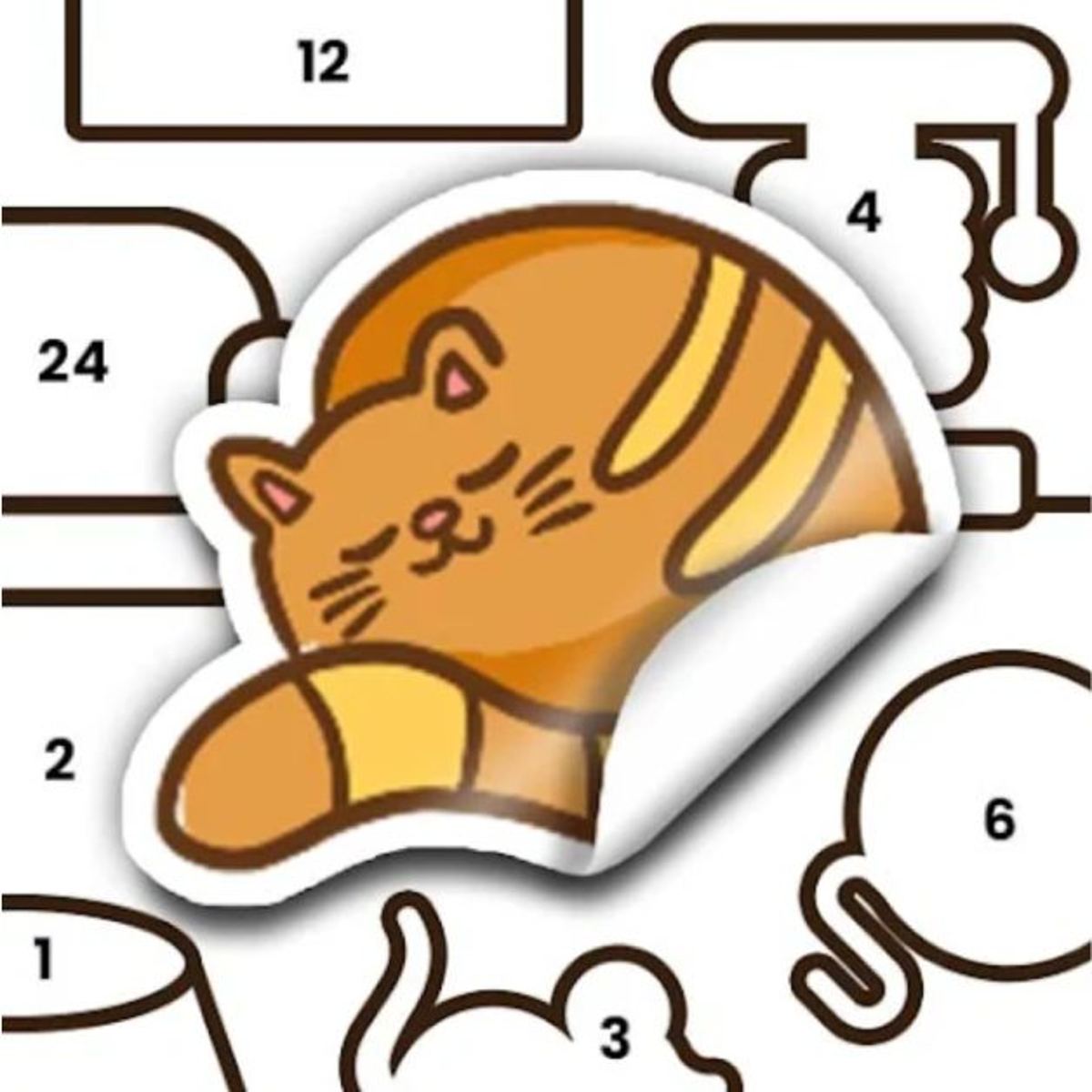
The objective is straightforward: fill in each section of an emoji outline with color to complete the picture. Each coloring page is divided into numbered or outlined zones, and your job is to match the colors to those zones—or ignore the numbers entirely and freestyle. The game doesn’t force you to follow any rules. You can color inside the lines or treat the whole thing like abstract art.
Desktop controls: Use your mouse to select a color from the palette on the side or bottom of the screen. Then click and drag across the area you want to fill. The brush size is fixed, but you can adjust the zoom to work on tiny details. If you make a mistake, there’s an undo button—usually a little arrow pointing left. You can also erase specific spots if you prefer a more precise approach. One thing I’ve found helpful: hold down the mouse button and drag slowly to avoid overshooting into neighboring sections. The game registers the fill as soon as you release, so a steady hand pays off.
Mobile controls: Tap the color you want, then tap and drag your finger over the section you want to color. The touch controls are responsive, and the interface scales nicely on smaller screens. On a phone, you might need to zoom in a bit for the really detailed pages, but the game handles pinch-to-zoom well. The undo and erase buttons are still there, just tucked into the toolbar. I’ve played on a six-inch screen, and while the tiny sections of a face emoji can be fiddly, zooming in makes it manageable. The game also remembers your zoom level between taps, so you don’t have to keep re-pinching.
One thing to note: the game saves your progress automatically as you go. So if you close the tab halfway through a banana emoji, it’ll be waiting for you when you come back. That’s a nice touch for people who like to work on a single piece over multiple sessions. The save is tied to your browser’s local storage, so it’s per-device. If you switch from your laptop to your phone, you’ll start fresh on that device. But for most people, that’s fine—you probably color on one device anyway.
Features
Emoji Coloring isn’t just a one-trick pony. It has a few features that make the experience feel more like a full-fledged creative tool than a simple time-waster.
Over 1,000 coloring pages. That’s the headline. The pages are organized into categories: classic emojis (smileys, hearts, gestures), animals (pets, wild animals, sea creatures), food (pizza, cake, fruits), objects (phones, books, sports gear), and more. New pages are added regularly—the game was last updated in June 2026, so the library keeps growing. For example, the “food” category alone has pages for a slice of pizza, a whole pizza, a burger, fries, sushi, ramen, ice cream, and even a detailed corn on the cob. Each page has a different level of complexity. The simple smiley face might have only a dozen sections, while a detailed cat face can have over fifty. That variety means you can pick a page that matches your mood and available time.
Two coloring modes. You can play in “numbered” mode, where each section has a number that corresponds to a specific color. This is like paint-by-numbers: you just tap the right color and fill. Or you can switch to “free” mode, where the numbers disappear and you can use any color anywhere. Free mode is great for experimenting, but it also lets you create custom color schemes that the original artist never intended. I like to use free mode to make a “mood” version of an emoji—like a sad face with cool blues and grays instead of the usual yellow. The numbered mode is perfect for beginners or for when you just want to relax without making decisions.
Zoom and pan. The canvas is large enough that you can zoom in on tiny details—like the eyes of a cat emoji—and zoom out to see the whole picture. Panning is smooth, whether you’re using a mouse or your finger. On desktop, you can use the scroll wheel to zoom, or click the zoom buttons in the toolbar. On mobile, pinch-to-zoom works naturally. I’ve found that zooming in to about 200% makes even the smallest sections easy to tap without mistakes.
Auto-save and resume. As mentioned, your progress is saved locally in your browser. You can close the game and come back hours later to find your half-finished emoji exactly where you left it. No account needed. The save happens after every fill action, so even if your browser crashes, you lose at most one stroke. That’s a level of reliability you don’t see in many free browser games.
No ads during gameplay. While the game is free, it doesn’t bombard you with ads while you’re coloring. You might see a short ad when you first load the game or between pages, but once you’re in the flow, it’s uninterrupted. That’s a rare courtesy in free browser games. The ads that do appear are usually skippable after five seconds, and they never pop up mid-stroke. I’ve played for an hour straight without seeing a single ad after the initial load.
Multiple color palettes. The default palette includes the standard emoji colors, but you can also switch to pastel tones, neon shades, or a grayscale set. This lets you give the same emoji a completely different mood—try a pastel skull emoji for a softer vibe. The pastel palette is especially nice for animal emojis; a pastel pink elephant looks adorable. The neon palette works well for food emojis, making a slice of pizza look like it’s glowing under a blacklight. You can also switch palettes mid-coloring, which is handy if you want to change the mood halfway through.
Undo and erase. The undo button reverses your last action, and you can undo multiple steps. The eraser tool lets you remove color from a specific area without undoing everything. This is useful when you accidentally color a large section with the wrong hue—just erase the mistake and redo it, rather than undoing a dozen steps. The eraser works like a brush: you select it, then drag over the area you want to clear. It’s not pixel-perfect, but it’s good enough for most corrections.
Tips and Strategies
You might think coloring is too simple to need strategy, but if you want to get the most out of Emoji Coloring—especially if you’re aiming for a polished final image—a few tricks can help.
Start with the largest areas first. When you open a new page, look for the biggest sections—like the background or the main body of the emoji. Fill those in first with your base colors. Then move to the smaller details. This prevents you from accidentally painting over a tiny area later when you’re trying to reach a bigger one. For example, on the pizza emoji, fill the crust and cheese first, then add the pepperoni and olives. If you do it in reverse, you might have to zoom in awkwardly to reach the crust around the toppings.
Use the numbered mode to learn color harmony. If you’re not confident in your color choices, stick with the numbered mode for a while. The preset palettes are designed by someone who knows what looks good. You’ll start to notice which colors go together naturally—warm yellows with oranges, cool blues with purples. After a few pages, you can try free mode and apply those lessons. I spent my first week in numbered mode, and by the end, I could predict which number corresponded to which color without looking at the palette.
Zoom in for precision, zoom out for perspective. When you’re working on a small detail—like the pupil of an eye or a tiny tooth on a smiley—zoom in all the way. But every few minutes, zoom back out to see the whole picture. It’s easy to get lost in a single area and miss that the colors don’t balance overall. I once spent ten minutes perfecting the shading on a cat’s nose, only to zoom out and realize the nose was now a completely different shade than the rest of the face. Zooming out regularly prevents that.
Don’t be afraid to undo. The undo button is your friend. If you pick a color that clashes, undo it immediately. You can also use the eraser tool to clean up edges if you accidentally color outside a line. There’s no penalty for mistakes, so experiment freely. The undo history seems to go back at least fifty actions, so you can backtrack a long way if needed.
Try the “negative space” approach. Instead of filling every single section, leave some areas blank. This works especially well with emojis that have a lot of small parts—like a pizza with pepperoni. Leaving the cheese uncolored can create a minimalist look that stands out. I’ve done this with the skull emoji: I colored the eyes and mouth, but left the skull itself white. It looked like a chalk drawing, and it was surprisingly striking.
Save your favorites. The game doesn’t have a built-in gallery, but you can take a screenshot of your finished work. On desktop, use the Snipping Tool or just press Print Screen. On mobile, a quick screenshot does the trick. You can then share your creations with friends or just keep them as a personal portfolio. I have a folder on my phone called “Emoji Art” with about thirty screenshots. It’s fun to look back and see how my coloring style has evolved.
Use the categories to challenge yourself. If you always color food emojis, try the animal category next. The shapes are different—more organic, less geometric—and they force you to think about shading and texture in a new way. Variety keeps the game fresh. I went through a phase where I only colored animal emojis, and I got much better at handling curved lines and irregular sections.
Plan your color scheme before you start. In free mode, it’s easy to get overwhelmed by choice. Before you begin, pick three to five colors that you want to use. Write them down or just remember them. Then stick to that palette. This prevents the chaotic mess that comes from using every color in the rainbow. For example, for a cat emoji, I might choose a warm orange, a light cream, a dark brown, and a soft pink. That gives me a cohesive look without too many decisions.
Use the eyedropper tool if available. Actually, Emoji Coloring doesn’t have an eyedropper tool, but you can simulate it by looking at the palette. If you want to match a color you’ve already used, just remember which number it was in numbered mode, or note the position in the palette. It’s a small workaround, but it helps maintain consistency.
Common Mistakes
Even a simple coloring game has pitfalls. Here are the ones that trip up new players most often.
Forgetting to zoom in on small sections. The biggest frustration is trying to color a tiny area with the default zoom level. You end up painting over adjacent sections, then having to undo and redo. Always zoom in for anything smaller than a fingernail. I’ve seen players rage-quit over a tiny eye that they couldn’t fill without spilling into the cheek. Zoom in to at least 150% for small details.
Using the wrong color in numbered mode. It’s easy to glance at a number, think “that’s blue,” and fill a section with blue—only to realize the number was actually for a different shade. Double-check the number against the palette before you click. The game highlights the matching number on the palette, but if you’re in a hurry, you can miss it. A good habit: tap the number on the palette first, then tap the section. That way you confirm the color before applying it.
Not using the eraser. Some players think they have to live with mistakes. You don’t. The eraser tool lets you remove color from a specific area without undoing everything. It’s especially useful when you accidentally color a large section with the wrong hue. For example, if you fill the entire background with blue when you meant to use green, you can erase the blue and start over without losing the rest of your work.
Overcomplicating free mode. When you first switch to free mode, it’s tempting to use every color in the palette. The result is often a chaotic mess. Instead, limit yourself to three or four colors per page. That constraint forces you to be creative and usually produces a more cohesive image. I once saw a player turn a simple heart emoji into a rainbow explosion that looked like a clown’s nightmare. A restrained palette would have looked much better.
Ignoring the background. Many emoji pages have a background area that you can color. Beginners often leave it white, which is fine, but coloring the background can make the emoji pop. Try a soft pastel background for a gentle look, or a dark one for a dramatic contrast. On the skull emoji, a dark purple background makes the white skull stand out beautifully. On the pizza emoji, a warm yellow background gives it a sunny vibe.
Playing too fast. This isn’t a speed game. The joy is in the process, not finishing quickly. If you rush, you’ll make more mistakes and feel frustrated. Slow down, enjoy the act of coloring, and treat each page like a mini meditation. I’ve found that listening to a podcast or some lo-fi music while coloring makes the experience even more relaxing.
Not checking the category before starting. Sometimes you’ll open a page expecting a simple emoji and get a complex one with fifty sections. If you only have five minutes, pick a page from the “simple” category (usually the classic smileys). The game doesn’t label difficulty, but you can judge by the thumbnail: more lines mean more sections. Save the detailed pages for when you have time to spare.
FAQ
Is Emoji Coloring free to play?
Yes, it’s completely free. You can play it in your browser on Poki without any payment or subscription. There are optional ads that support the developer, but you never have to pay to access any page or feature. There are no in-app purchases, no premium pages, and no time limits.
Can I play on my phone or tablet?
Absolutely. The game works on both desktop and mobile devices. The touch controls are well-optimized, and the interface adapts to smaller screens. You can play on an iPhone, Android phone, iPad, or any tablet with a modern browser. I’ve tested it on an iPad Pro and an old Android phone, and both ran smoothly.
How many coloring pages are there?
Over 1,000 pages at the time of writing, and more are added with updates. The categories include emojis, animals, food, objects, and more. You’ll never run out of new pictures to color. The developer seems to add a new batch every few months. The last update in June 2026 added about fifty new pages, including some seasonal emojis like a Christmas tree and a pumpkin.
Do I need to create an account?
No account is required. Your progress is saved automatically in your browser’s local storage. If you clear your browser cache, you might lose your unfinished work, but otherwise it persists between sessions. If you want to keep your finished pieces, take a screenshot.
Who made Emoji Coloring?
The game was developed by illusivegames, the same studio behind Prismo Coloring and Prismo Puzzles. They specialize in casual, creative games that are easy to pick up and hard to put down. Their style is clean, colorful, and focused on relaxation rather than competition.
Can I share my colored emojis?
There’s no built-in share button, but you can take a screenshot and share it on social media or send it to friends. Many players post their creations on Reddit or Discord. It’s a nice way to show off your work and get inspiration from others.
Does the game work offline?
No, it requires an internet connection because it loads pages from the server. However, once a page is loaded, you can color it without a connection for a while. If you lose internet mid-coloring, your progress is saved locally, so you won’t lose anything. But you won’t be able to load a new page until you reconnect.
Is there a way to reset a page?
Yes, you can clear all colors from a page by using the reset button (usually a circular arrow icon). This erases all your progress and lets you start fresh. It’s useful if you want to try a different color scheme without undoing every stroke.
##
Emoji Coloring doesn’t try to be anything more than what it is: a generous, well-made coloring book for the digital age. With hundreds of pages, two distinct modes, and controls that work on any device, it’s the kind of game you keep coming back to when you need a few minutes of quiet creativity. Whether you’re a meticulous paint-by-numbers fan or a free-spirited artist, there’s an emoji waiting for your colors. And the best part? You can always start another one.