Anycolor
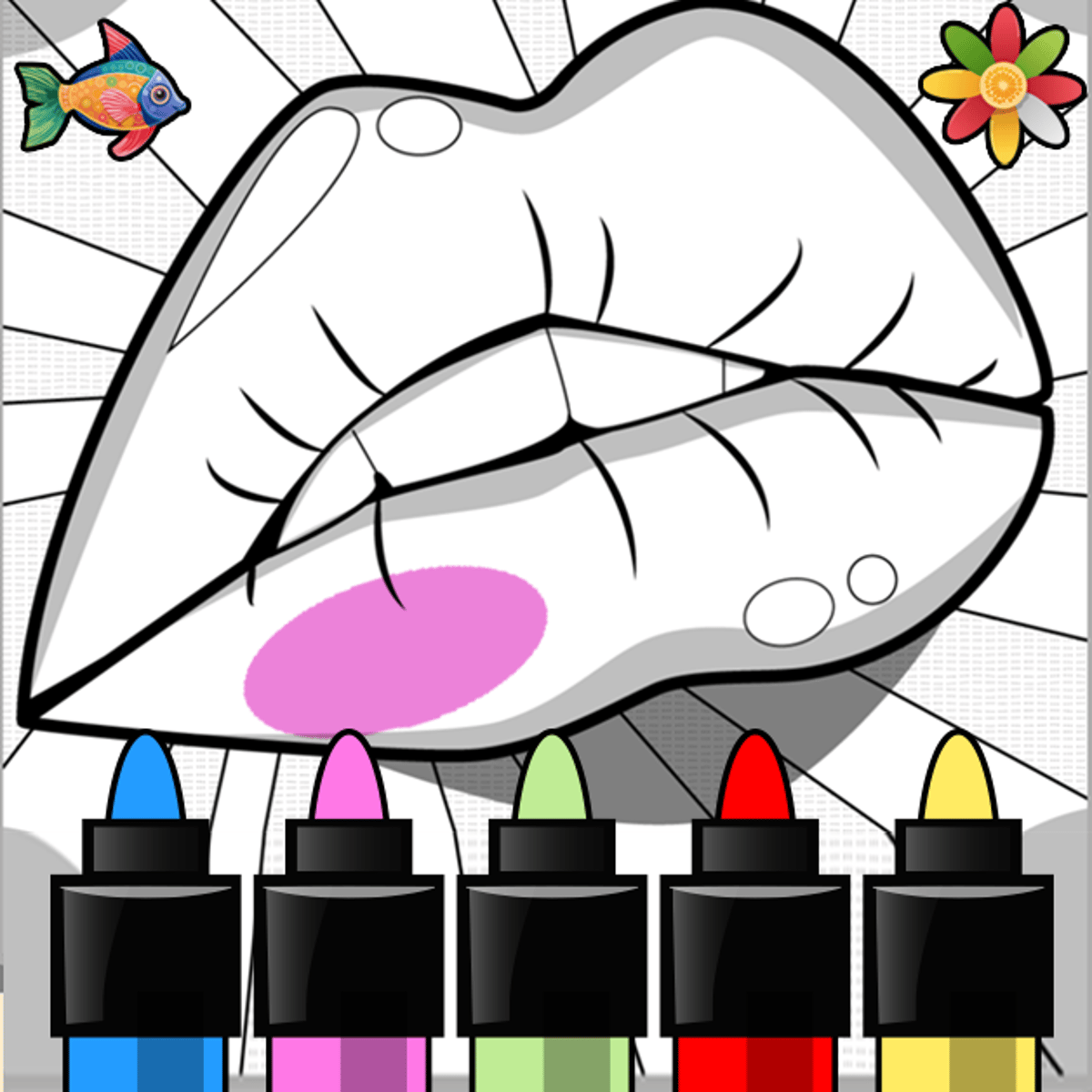
Anycolor is a browser-based coloring game that gives you a blank illustration, a palette of colors, and then gets out of your way. No timers. No scores. No fail states. You pick an image—a cartoon animal, a plate of sushi, a fantasy landscape—and fill it in however you like. The simplicity is the point, and it’s what brings people back. There’s a quiet satisfaction in watching a black-and-white line drawing bloom into a full-colored piece you made yourself.
Developed by Aniway, a Finnish studio focused on creative browser games, Anycolor is their flagship title. It’s amassed hundreds of thousands of likes on Poki, and that success comes down to two things: a constantly growing gallery of images and the low-pressure nature of the experience. This isn’t a game you boot up to compete. It’s one you open to unwind. New pictures are added regularly, so even if you’ve colored every animal and vehicle on offer, there’s usually something fresh waiting for you next time.
How to Play
The core loop is simple. Choose an image from the scrollable gallery. Each picture is divided into distinct sections by clean black outlines. Your job is to fill those sections with color.
Desktop controls use the mouse. Click inside a section to fill it with the current color. Scroll through the image and palette menus to browse. A brush tool is also available for finer detail work—perfect for blending or tackling smaller areas instead of using flat fills.
Mobile controls work the same way with taps. Tap a section to color it, swipe to scroll, and use the brush for precision. The experience translates seamlessly to touchscreens.
On either platform, you can zoom in to make coloring tight spots much easier. A nice detail: the brush automatically shrinks when you’re zoomed in, so you can work on fine lines without slopping color into the wrong area.
Key buttons include:
- Undo — reverses your last action. Essential for fixing color mistakes.
- Redo — restores an action you just undid. Great for comparing color choices.
- Finish — applies final filters and outlines to clean up your completed artwork.
- Download — saves the finished piece to your device for sharing or keeping.
The default color set is just the beginning. Exploring the full palette menu early reveals a variety of unlockable color sets, giving you access to a much wider range of shades.
Features
Anycolor isn’t about flashy mechanics. Its strength is in thoughtfully designed tools that support creativity.
Diverse image library. The gallery spans animals, people, food, vehicles, abstract designs, spooky illustrations, and more. The variety keeps things interesting, and regular additions keep the collection fresh.
Multiple color palettes. Unlockable palettes range from soft pastels to bold neons. They change the feel of a piece entirely. The same sunset scene looks completely different in a warm palette versus cool blues and purples.
Brush and fill tools. The fill tool is your workhorse—click a section, fill it flat. The brush offers painterly control for gradual application and nuanced effects. Knowing when to switch between them is part of the craft.
Zoom functionality. Pinch or scroll to zoom in on intricate details. The brush size adjusts automatically at higher zoom, which is a small but practical feature that prevents a lot of frustration.
Save and share. When you’re done, download the finished artwork directly to your device. There’s no built-in social feed, but the download option makes it easy to post your work anywhere you like.
Tips and Strategies
Start with the background. Coloring the larger, less detailed areas first sets the overall mood and gives you context for picking accent colors. A bright red barn is easier to place once you’ve chosen a sky color.
Don’t overlook the extra palettes. The default works, but unlockable sets offer subtler gradients and more interesting combinations. Take a minute to scroll through all of them before deciding on a color scheme.
Use the brush for edges and transitions. Flat fills are great for solid sections, but for gradients or color variation, the brush is your friend. A sky doesn’t have to be one uniform blue—darkening it slightly near the top adds depth.
Zoom in for tight geometry. Small flowers, intricate patterns, or detailed facial features are much easier to handle magnified. The auto-scaling brush makes this seamless, so there’s no need to struggle at normal zoom.
Commit to a color story. The best-looking pieces tend to follow a loose theme—warm tones, cool tones, pastels, or high-contrast primaries. Randomly grabbing colors from everywhere usually looks chaotic. Pick a direction early and stick with it.
Use undo freely. You’re not being graded. If a color looks wrong, undo it and try something else. Experimentation is half the fun, and there’s no penalty for changing your mind.
Common Mistakes
The biggest trap for new players is using too many colors at once. A picture packed with twelve different bright hues tends to look cluttered. Experienced colorists know that restraint—using three to five main colors with one or two accents—creates more appealing results.
Another common issue is ignoring the zoom feature and struggling with small areas at default view. If you’re constantly filling the wrong section or going outside the lines, you probably need to zoom in.
Some players forget the brush tool exists and rely solely on the fill. While fills are fast and clean, the brush adds an artistic touch that elevates simple coloring into something that looks hand-crafted. Learning to switch between them is a skill worth developing early.
Finally, people sometimes rush to hit “Finish” before taking a final look. Once you apply the filters and outlines, the image is locked. Take a moment to zoom out and review the full picture before you commit.
FAQ
Is Anycolor free to play?
Yes. It’s completely free and runs in your browser on Poki. No account, no download, no payment required.
Does it work on phones and tablets?
It does. The game runs on both desktop and mobile browsers, with controls adapted for touchscreens.
Are new pictures added to the game?
The gallery is updated periodically with new illustrations. The developer continues to support the game with fresh content, so it’s worth checking back.
Can I save my finished artwork?
Yes. The download option lets you save your completed piece as an image file. From there, you can share it on social media, send it to friends, or keep it.
Is there a way to undo mistakes?
Undo and redo buttons are available throughout your coloring session. You can step back through your recent actions, so no mistake needs to be permanent.
Anycolor doesn’t pretend to be anything more than it is: a clean, relaxing coloring experience with a growing library and tools that let you put a real personal stamp on every piece. Sometimes, that’s exactly the game you need.