



Draw Pixel Art
Filling a blank grid one square at a time has a quiet appeal. Draw Pixel Art taps straight into that. You start with an empty canvas of tiny cells, pick a color from the palette, and click each cell to match a reference image. The result is a chunky, retro-style picture that looks like it came out of an old video game. Simple, almost meditative, and surprisingly easy to lose an hour to.
No flash here. No timers, no scores, no pressure. You sit down with a template—maybe a cat, a slice of pizza, or a little ghost—and work through it pixel by pixel. The appeal is in the process: the slow reveal of a recognizable shape from a mess of colored squares. It’s the same calm you get from a paint-by-numbers kit, but without the mess or the need for steady hands.
With over thirty images to choose from, there’s enough variety to keep you coming back. Some are small and quick, perfect for a five-minute break. Others are larger and more detailed, demanding a bit more patience. And because there’s no time limit, you can take as long as you want. That’s the whole point.
How to Play
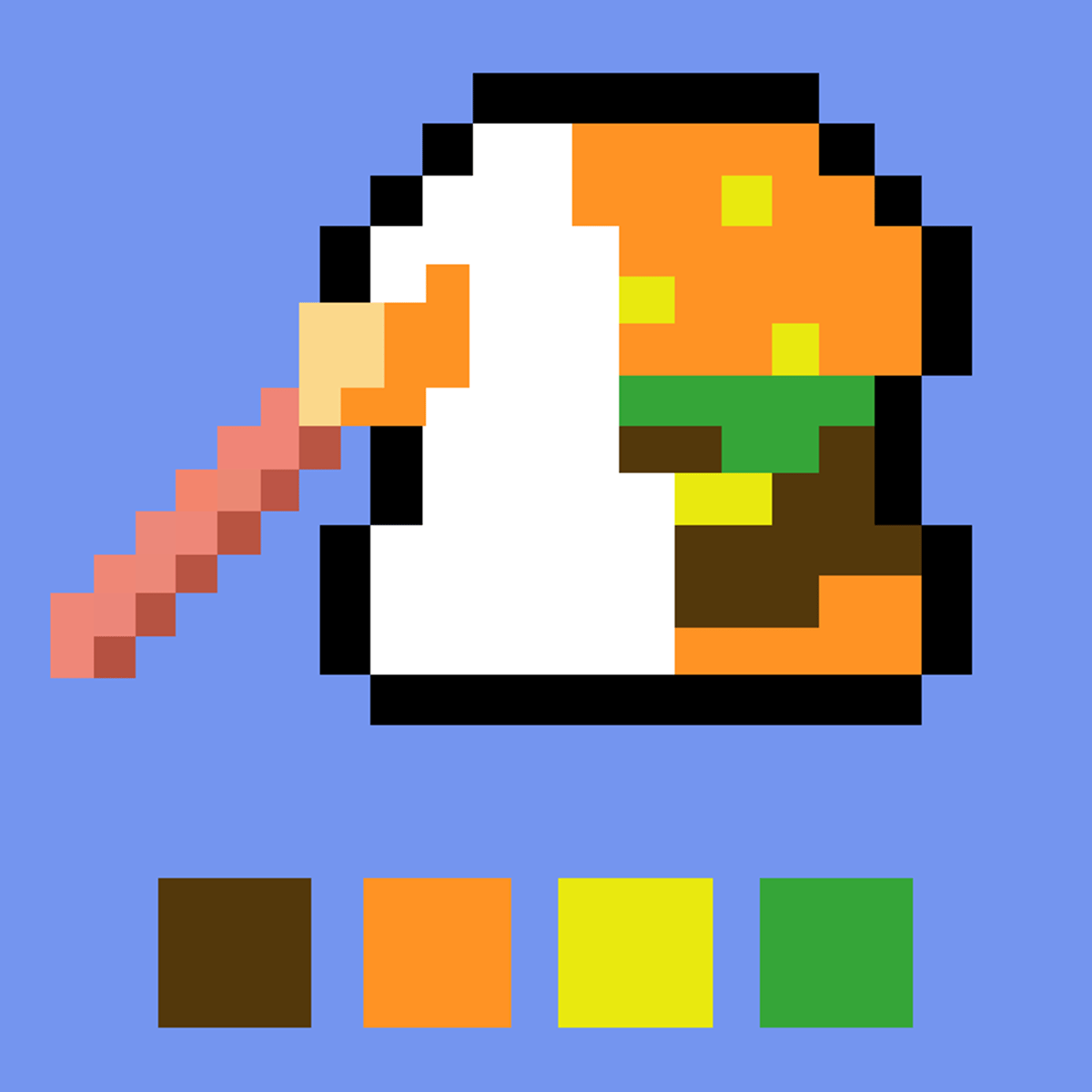
The objective is straightforward: recreate the pixel art shown in the reference image by filling the grid with the correct colors. Each cell on the grid corresponds to a pixel in the final picture. You’ll see the reference in a small window, and your blank grid sits beside it, waiting to be filled.
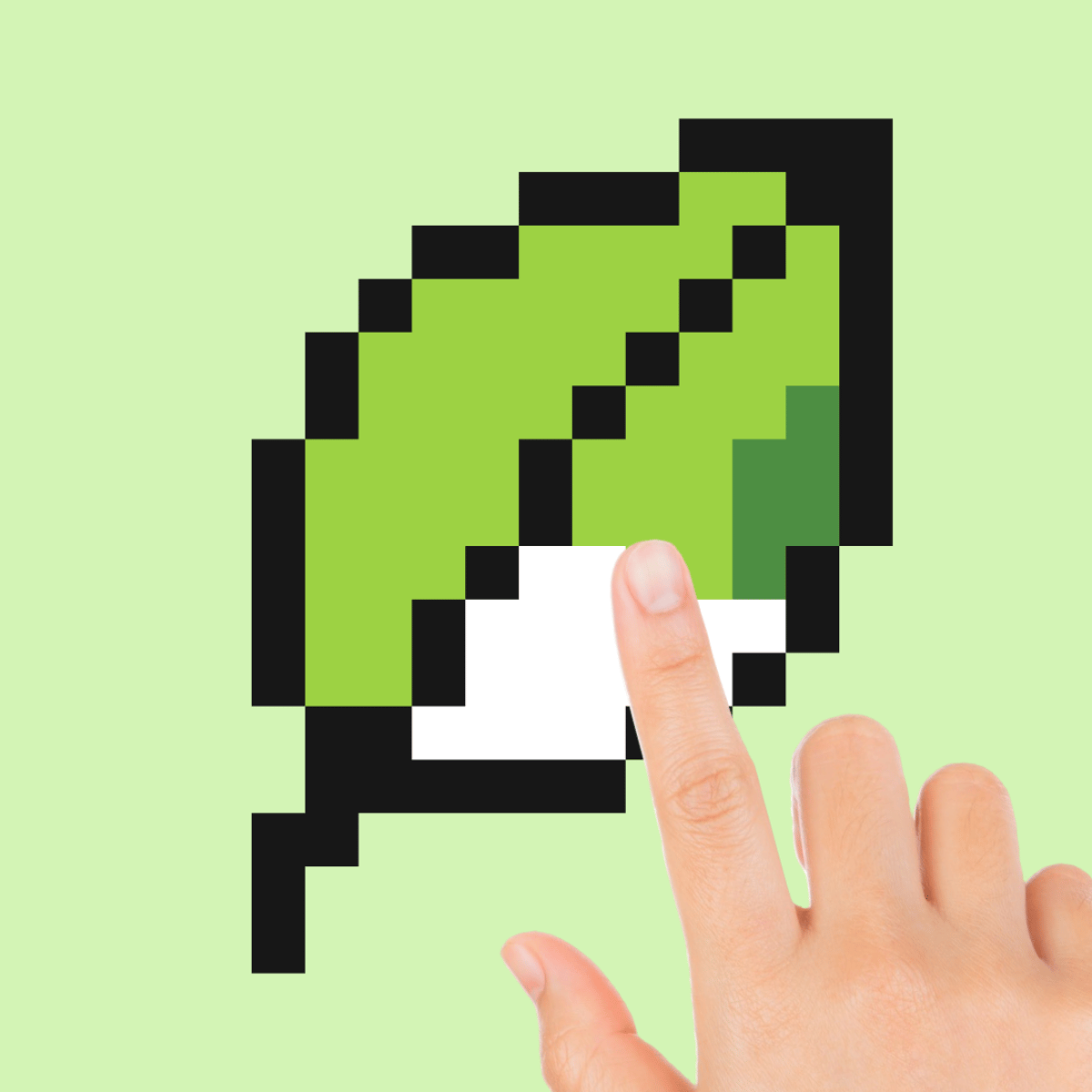
On desktop – Use your mouse. Click a color from the palette at the bottom of the screen to select it. Then click any cell on the grid to fill it with that color. Need to switch colors? Just click a different one. When you think you’ve finished the picture, click the “OK” button to check your work. The game will tell you if you got it right or if there are mistakes to fix.
On mobile – The controls are the same, but you tap instead of click. The palette and grid scale to fit your screen, so you can play comfortably on a phone or tablet. Everything else works exactly like the desktop version. No extra menus, no hidden gestures.
That’s really all there is to it. The game doesn’t add layers of complexity. It’s a pure, focused activity.
Gameplay and Features
While Draw Pixel Art doesn’t have separate game modes or a progression system, it does have a few things that make it more than just a one-off time killer.
- 30+ images – The selection covers animals, food, objects, and cute characters. Some are simple shapes, others are more intricate. You unlock them all from the start, so you can pick whatever catches your eye.
- No time pressure – You can take breaks, walk away, and come back later. The game doesn’t punish you for going slow.
- Instant feedback – When you click “OK,” the game highlights any mismatched cells. That way you know exactly where you went wrong without having to compare every pixel manually.
- Clean interface – The palette is always visible, and the grid is large enough to see individual cells. The reference image stays on screen, so you don’t have to memorize anything.
- Cross-platform – Works on desktop, tablet, and phone. Your progress isn’t saved between sessions (unless you finish a picture in one go), but each image is small enough to complete in a single sitting if you want.
The lack of a timer or scoring system is actually a strength. It turns the game into a low-stakes creative exercise rather than a challenge. You’re not competing against anyone, not even yourself. You’re just making a picture.
Tips and Strategies
Even a simple game like this has a few tricks that make the process smoother and more enjoyable.
- Start from the edges – Filling in the border first gives you a clear outline. Once the shape is defined, the inner areas are easier to handle because you can see where each color block begins and ends.
- Work in small sections – Don’t try to do the whole image at once. Pick a corner or a distinct color area and finish that part before moving on. It feels more rewarding to see a completed section than to have a half-finished mess.
- Use the reference image often – It’s tempting to rely on memory, but the reference is there for a reason. Glance at it every few clicks to make sure you’re on the right track. One wrong color can throw off the whole picture.
- Zoom in if you can – On desktop, the grid is usually big enough. On mobile, you might need to zoom (pinch to zoom works in most browsers). Seeing each cell clearly reduces misclicks.
- Take breaks – Staring at a grid of tiny squares for too long can strain your eyes and make you careless. Stand up, look away, then come back fresh. The picture will still be there.
- Double-check before clicking OK – Once you hit that button, the game will tell you if you’re wrong. But if you’ve been careful, you can save yourself the disappointment. Scan the grid one last time, especially the edges and corners where mistakes hide.
Common Mistakes
New players tend to run into the same few issues. Knowing them ahead of time can save you some frustration.
- Clicking the wrong color – It happens more than you’d think. You select a color, click a cell, and realize it’s the wrong shade. There’s no undo button, so you have to manually correct it by clicking the right color over the mistake. That’s fine for one cell, but if you’ve filled a whole area with the wrong color, it’s a pain to fix.
- Ignoring the reference – Some people try to go from memory or guess the pattern. The reference is your map. Without it, you’re just randomly placing colors. Always keep it visible.
- Rushing the final check – When you click OK and the game says “wrong,” don’t panic. It will show you which cells are incorrect. But if you rush through the correction without looking at the reference again, you might make the same mistake twice.
- Not using the full palette – The palette has more colors than you might expect. Some images use subtle shades that look almost the same. If you pick the wrong dark blue instead of the right dark blue, the picture will look off. Compare the reference carefully.
- Getting stuck on a large image – Some pictures are bigger than others. If you start a 20x20 grid and get bored halfway, that’s normal. Take a break or switch to a smaller image. There’s no shame in leaving one unfinished.
FAQ
Is Draw Pixel Art free to play?
Yes, it’s completely free. You can play it in your browser without downloading anything or paying any money.
Can I play on my phone?
Absolutely. The game works on mobile browsers just as well as on desktop. Tap to select colors and tap to fill cells.
How many pictures are there?
There are over thirty different images to choose from. The exact number may increase if the developer adds more in updates.
What happens if I make a mistake?
There’s no undo button, so you have to manually correct the wrong cell by clicking it with the correct color. The game will also check your work when you press OK and point out any errors.
Who made this game?
It was created by Kzunec Games. They also make other casual titles like Polygon Master and Pixel Fishing.
---
If you’ve ever enjoyed those pixel-art coloring books or just want a quiet way to pass the time, Draw Pixel Art delivers exactly what it promises. No frills, no stress—just you, a grid, and a picture waiting to be filled.